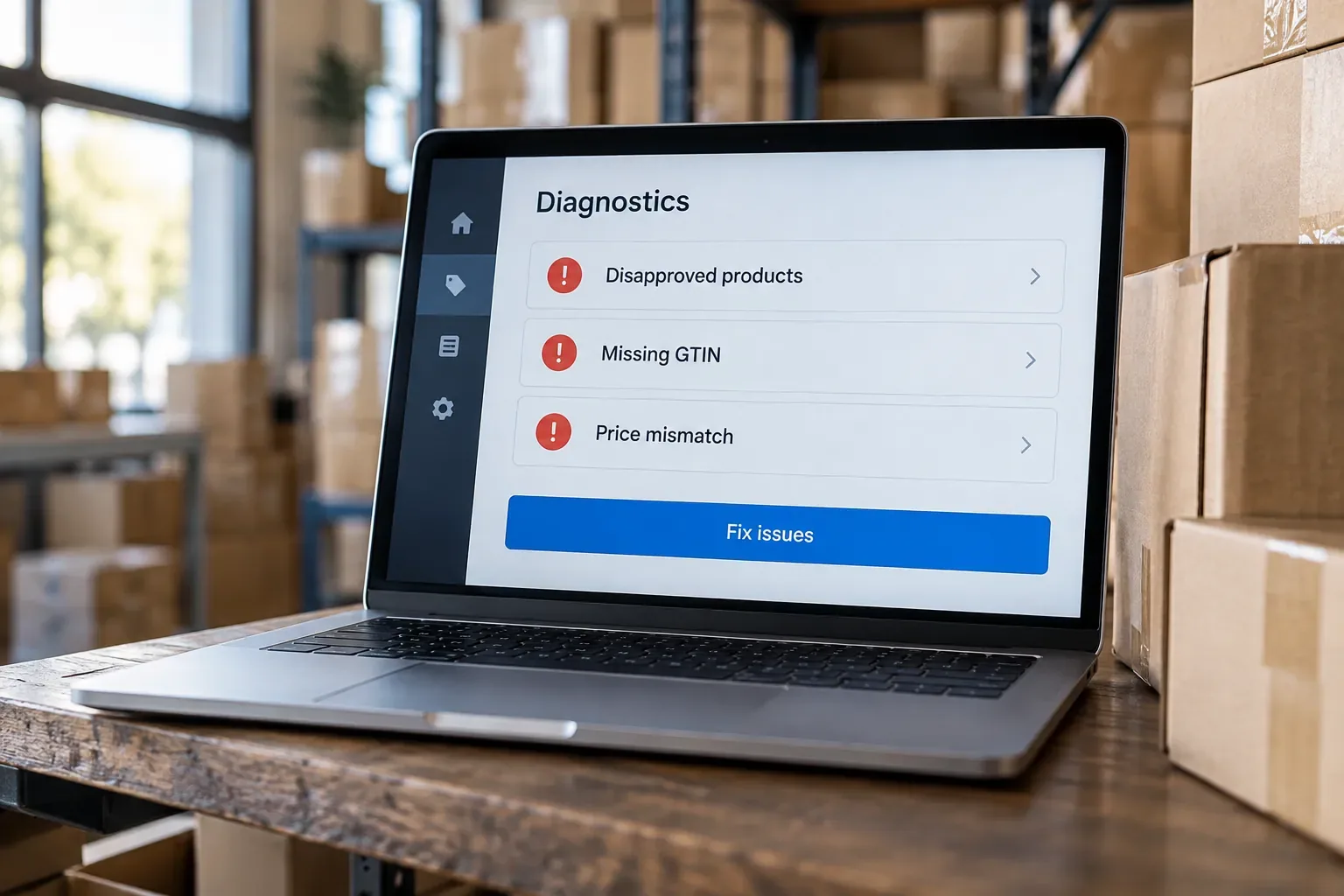
- Merchant Center checks your product data against your site and its policies, and disapproves products that do not match.
- Price and availability mismatches are the most common errors and usually come from caching or feed timing.
- Missing product identifiers limit reach, and image problems block products outright.
- Account-level issues such as misrepresentation need fixes on the site, not in the feed.
Contents 9 sections
- Where do you see the errors?
- Price and availability mismatch
- Missing or invalid product identifiers
- Image problems
- Product page unavailable
- Missing shipping or tax information
- Account-level issues and misrepresentation
- Which feed attributes matter most for reach?
- How do you prevent errors from coming back?
Google Merchant Center errors mean that Google found a difference between your product feed and your website, or a gap in the information its policies require. Most errors fall into a few groups. The price or stock on the page does not match the feed, product identifiers are missing, images break the rules or the site lacks information Google wants buyers to see. Each group has a clear fix.
Where do you see the errors?
In Merchant Center, open the Products section and filter by products that need attention. Each issue shows how many products it affects, an example and a link to Google's help article. Account-level issues appear separately, often in a banner at the top. Start with issues that affect the most products and with anything marked as disapproved or suspended.
Price and availability mismatch
Google crawls your product pages and compares the price and stock status with the feed. If the page shows a different price, or a sold-out item is "in stock" in the feed, the product is disapproved.
- Feed updates too rarely. Prices changed on the site, and the feed updates once a day. Update the feed more often, or connect the store through the Google and YouTube app on Shopify or the Google for WooCommerce plugin, which sync changes faster.
- Cached pages. A caching plugin or CDN serves an old price to Google's crawler. Clear the cache after price changes and exclude cart and product data from long caching.
- Sale price shown differently. The page shows a sale price, the feed has the regular price only. Send the sale price and its dates in the feed.
- Prices by location or currency. The page shows a price in another currency or with tax added based on the visitor's location. Make sure Google's crawler sees the same price as the feed.
Turning on automatic item updates in Merchant Center lets Google correct price and availability from your structured data, which reduces disapprovals between feed updates. It works only when the Product schema markup on the page is correct.
Missing or invalid product identifiers
GTIN is the barcode number for branded products, such as a UPC in the US. Google uses it to match your product with searches and other sellers. A missing GTIN for a branded product limits performance, and a wrong GTIN can lead to disapproval.
- Take GTINs from the manufacturer or the product packaging, not from generators.
- For products you make yourself, custom products and vintage items, set the identifier exists attribute to no.
- Send the brand and the manufacturer part number (MPN) where you have them.
Image problems
Google rejects images with promotional text, watermarks, logos over the product, borders or placeholder images. It also limits images that are too small or that do not show the product clearly.
- Use a clean photo of the product on a plain background as the main image.
- Move lifestyle photos and images with text to additional image links.
- Make sure the image URL in the feed opens the image directly and is not blocked by robots.txt.
Product page unavailable
If the product URL returns an error, redirects to the home page or is blocked for Google's crawler, the product is disapproved. Check deleted products that remain in the feed, redirects after URL changes and firewall rules that block Googlebot. Products must have a working page with an add to cart option.
Missing shipping or tax information
Every product needs a shipping cost for the country it targets. Set shipping rules in Merchant Center that match your checkout, including free shipping thresholds. A shipping cost in Merchant Center that is lower than the checkout cost counts as a mismatch too.
Account-level issues and misrepresentation
Misrepresentation is the most serious issue, and it suspends the whole account. Google flags stores that do not give buyers enough information to trust them. Fixes happen on your website.
- A contact page with an email address and a physical or business address where your business model allows it.
- Clear return and refund policy, shipping policy and terms, linked from the footer.
- Prices, fees and delivery times shown before checkout.
- A secure checkout over HTTPS with recognizable payment options.
- No claims you cannot support, such as fake discounts or invented reviews.
Once everything is in place, request a review in Merchant Center. Do not request it before the site changes are live, because repeated failed reviews increase the waiting time.
Which feed attributes matter most for reach?
Fixing errors makes products eligible to show. The quality of the feed decides how often they show and for which searches.
- Title. Brand, product type and the attributes people search for, such as size, color, material or model number, in the order buyers use them.
- Product type and Google product category. Your own category path and the closest Google category, which help Google understand the product.
- Images. A clear main image and several additional images, including the product in use.
- GTIN, brand and MPN. Identifiers that link your product to searches for that exact item.
- Variants. Each size or color as its own item with an item group ID, so Google shows the right variant and price.
- Description. Plain facts about the product, without promotional text or shipping information.
How do you prevent errors from coming back?
Most errors come back after site changes. Check Merchant Center diagnostics after each price update, theme change or plugin update, and keep a supplemental feed for fixes such as corrected titles and GTINs, so a feed rebuild does not overwrite them. Product titles that include the brand, product type and key attributes help Shopping ads reach the right searches as well.
Merchant Center setup and feed fixes are part of our Google Shopping ads management at $100/mo. For how Shopping fits with other campaign types, read Performance Max vs Search campaigns.
Questions and answers
Why are my products disapproved in Google Merchant Center?
The most common reasons are a price or availability on the product page that differs from the feed, a missing or invalid GTIN, an image with text or a watermark, a product page that returns an error, and policy issues such as missing return or contact information.
How long does Google take to review products after a fix?
Product-level fixes are usually picked up within a few days after the feed is processed again. Account-level reviews, such as a misrepresentation review, can take longer, and repeated requests without real changes can lead to longer waiting periods.
What does limited performance due to missing identifiers mean?
Google can match branded products to search results better when the feed has a GTIN, the barcode number from the manufacturer. Without it, the product may still show but reach fewer searches. Products you make yourself can be marked as having no GTIN.
Thank you. Share the article with someone who needs it.
Tell us what was missing in the article and we will reply. Ask a question